
Account
Notification settings and matching emails
Choose the alerts that support your workflow and understand what company and rep matching emails actually mean.
Notification settings help you respond to useful account activity without treating every message as equally urgent. The available controls depend on whether the account is a company or rep account.
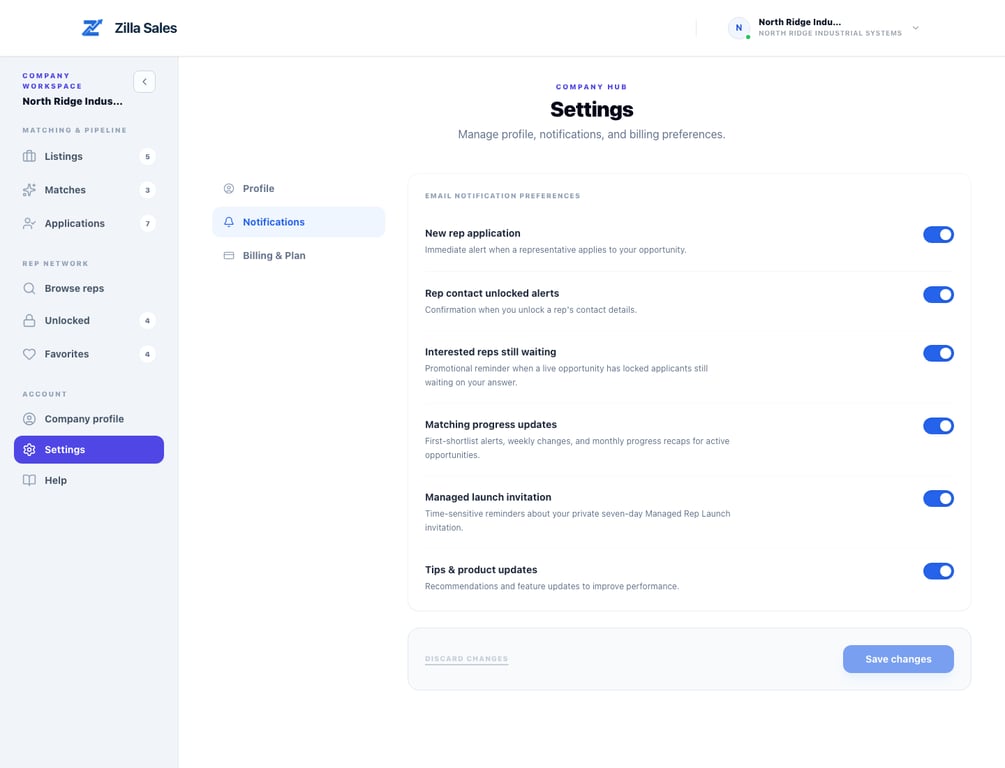
Change a notification setting
- Open Settings.
- Select Notifications.
- Turn the relevant control on or off.
- Select Save changes.
Most changes apply immediately, although a message already being prepared may still arrive. Security, billing, authentication, and legally required service messages are not controlled by optional notification preferences.
Company notification controls
Company accounts can manage:
- New rep application: an immediate alert when a rep applies
- Rep contact unlocked alerts: confirmation when your team unlocks contact data
- Interested reps still waiting: a reminder when locked applicants are awaiting action
- Matching progress updates: first-shortlist alerts, weekly changes, and monthly progress recaps for active opportunities
- Managed launch invitation: time-sensitive reminders about an available managed-launch offer
- Tips & product updates: optional education and feature announcements
A matching email means Zilla has relevant shortlist activity to show. It does not mean the recommended rep applied, confirmed availability, or agreed to represent the company.
Rep notification controls
Rep accounts can manage:
- Company unlocked your contact: an alert when a company gains access to available contact details
- Opportunity matching updates: first-match alerts, weekly opportunity updates, positive monthly activity, and relevant re-engagement
- Tips & product updates: optional guidance and feature announcements
An opportunity alert is a prompt to review fit, not a guarantee that the listing is right for your line card or that an application will be accepted.
Read matching messages correctly
- First shortlist or first match: the initial relevant set is available
- Weekly update: useful additions or changes were identified
- Monthly recap: a broader summary for an opportunity or profile that remains active
- Application alert: a rep independently submitted an application
- Contact-unlock alert: contact access changed in the current workflow
Open the linked Zilla Sales page and review the full context before acting. Do not make a decision from the email subject or preview alone.
Recommended setup
Companies should normally keep applications, matching progress, and billing-related service notices visible to whoever owns the search. Reps should keep contact-unlock and opportunity alerts enabled when actively seeking work. Turn off optional promotional categories that do not support the current workflow.
If several people share responsibility, use distinct account access rather than forwarding sign-in codes or sharing one login. On Growth, invite colleagues as team members from Settings → Team. Each teammate then sets their own notification preferences; one person turning off an email never changes what colleagues receive. Billing and payment notices go to the account owner only. See Team access.
If emails are missing
Check spam, promotions, quarantine, and company mail filtering. Confirm the account email in Settings and verify that the relevant preference is enabled and saved. If a specific expected message is missing, contact support@zillasales.com with the account email, message type, and approximate expected time.
Related guides
Was this article helpful?
Tell us whether this answered your question.