
Company
Unlock rep contacts and resolve problems
Use contact credits deliberately, understand what an unlock provides, and fix the most common unlock blockers.
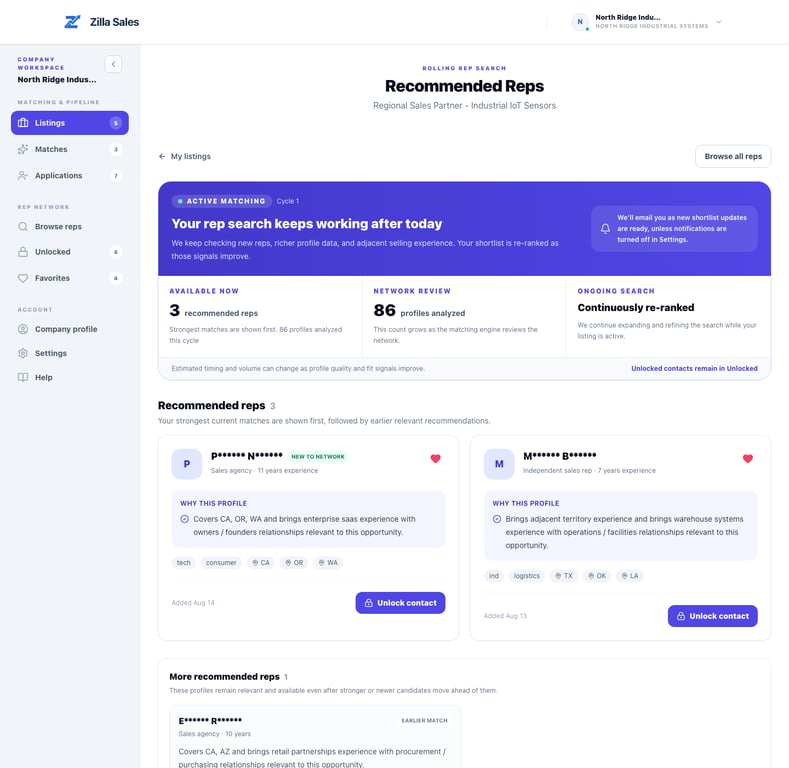
Unlocking a rep uses one available contact credit and reveals the contact details currently available for that profile. It gives your team a way to perform direct outreach; it does not guarantee a response, meeting, agreement, or sale.
Before you unlock
Confirm that:
- You are signed into the correct company account.
- The company has an active subscription or access state that permits the action.
- At least one contact credit is available.
- The profile is relevant enough to justify direct outreach.
- Someone on your team can follow up promptly.
Check the current plan and credit balance in Billing & Plan settings. A recommendation is not confirmed interest, so read the profile evidence before spending a credit.
Where you can unlock a rep
Depending on the workflow, an unlock action may appear in:
- Matches, for opportunity-specific recommendations
- Applications, for reps who actively applied
- Browse reps, for a wider directory search
- Favorites, for profiles your team saved
- The full rep-profile view
Start with Applications when the rep has already expressed interest. Use Matches or Browse reps for proactive outreach.
Evaluate the profile first
Review territory, target buyer, industries, product or channel adjacency, line-card conflicts, experience, and the opportunity-specific rationale. Open the full profile when you need more context.
A strong rationale explains why the profile may fit; it is not verification of current availability, customer relationships, or willingness to represent the line. Your company remains responsible for qualification.
What happens after unlock
One credit is consumed for the profile. Available email, phone, LinkedIn, or agency website details can be revealed, and the profile remains organized under Unlocked Reps.
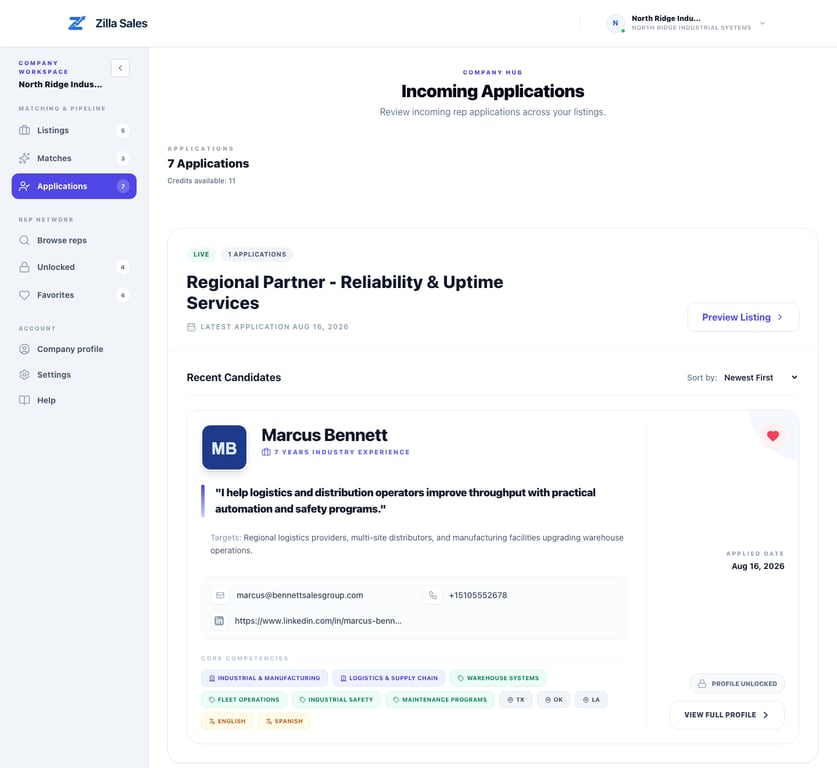
Check Unlocked before retrying an action. If the profile was already unlocked, use the stored contact rather than expecting another reveal.
Unlocked reps also appear in the Outreach log. After contacting a rep, record the method, outcome, note, and next follow-up. Opening contact details alone does not record outreach. See Track rep outreach and follow-ups.
Resolve common unlock problems
| What you see | What to check |
|---|---|
| Subscribe or view plans | Confirm the company has a current paid-access state and that you are in the correct company workspace. |
| No credits available | Review the credit balance and current plan in Billing & Plan. |
| Button is disabled | Confirm the profile is eligible, the page has finished loading, and a credit is available. |
| A generic error | Refresh once, sign in again, and retry a single time. |
| Contact still looks hidden | Open Unlocked Reps or reload the full profile before attempting another unlock. |
| Wrong account area | Sign out and return with the company account that owns the subscription and listing. |
Do not repeatedly click the unlock action while it is processing.
If the contact is incomplete or outdated
Available contact data can change. If an email bounces or a field is clearly wrong, do not spend time guessing private information. Contact support@zillasales.com with the rep-profile link, company account email, unlock time, and the affected field. Do not publish the rep’s personal information in a public message.
What to send support for a failed unlock
Include the rep-profile link, opportunity link if applicable, approximate timestamp, visible credit balance, exact error, and a screenshot. Do not send card details, passwords, or sign-in codes.
Related guides
Was this article helpful?
Tell us whether this answered your question.