
Company
Track rep outreach and follow-ups
Keep your next step clear: record rep outreach, replies, calls, and follow-ups in your company workspace.
Use the Outreach log to keep track of reps you plan to contact, replies, calls, and the next step. It brings your company’s unlocked contacts and applicants into one place.
Open Outreach log, or choose Outreach log under Matching & pipeline in your company sidebar. If the option is missing, contact support@zillasales.com to check availability for your account.
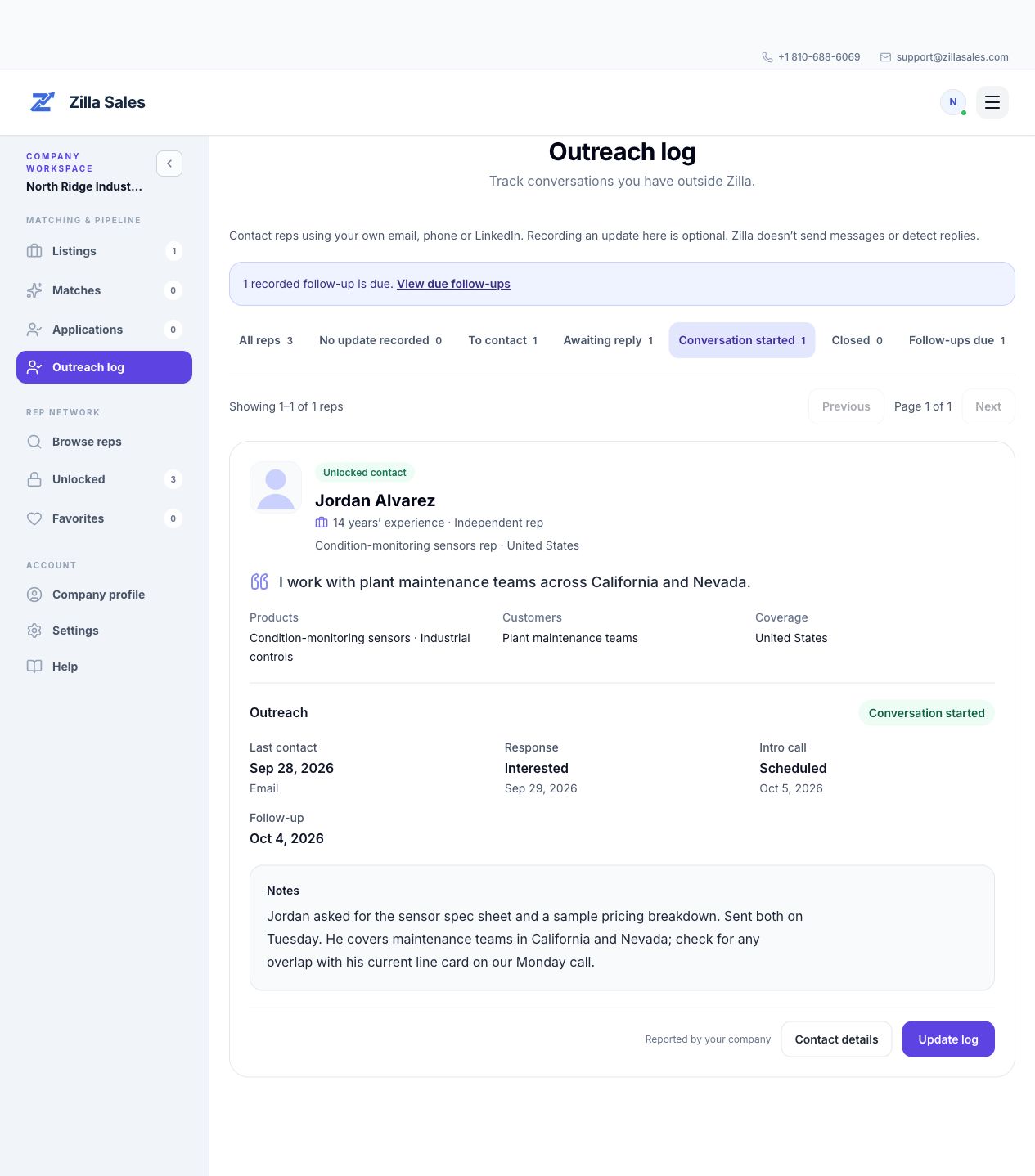
The screenshots and examples use fictional people and a fictional company to illustrate the workflow.
Who appears in the log?
- Reps whose contact details your company has unlocked, including earlier unlocks.
- Reps who applied to one of your company’s opportunities, including earlier opportunities.
- Reps with an existing outreach record, so you can return to the conversation.
A rep appears once, even if they applied to several opportunities. Suggested matches and favorites appear after an unlock or application; saving a favorite alone does not add them. Deleted rep profiles are excluded.
No update recorded means nobody has recorded an outcome. It does not mean the rep has never been contacted. Opening or copying contact details does not change the status.
Find the next rep to work on
The log shows up to 20 reps per page. Use Previous and Next above the cards to move through the current view. The filter counts cover your whole log, including reps on other pages.
| Filter | When to use it |
|---|---|
| No update recorded | Check contacts that still need a recorded update. |
| To contact | Work through the reps you have marked for outreach. |
| Awaiting reply | Review outreach that has not yet led to a conversation. |
| Conversation started | Return to a useful reply or conversation. |
| Closed | Keep a record when no further follow-up is planned. |
| Follow-ups due | Find open records whose reminder date has arrived. This filter appears when a follow-up is due. |
Changing a filter starts you at its first page. A Closed record is excluded from due follow-ups. Closed does not, by itself, mean you started working together.
Record the first contact
- Open Contact details and contact the rep through your own email, phone, or LinkedIn.
- Select Record an update, or Update log if a record already exists.
- Choose a Status and, if helpful, the relevant Opportunity.
- Select the Contact method and record what actually happened.
- Add a follow-up date or a short note, then select Save log update.
If you are still preparing your introduction, choose To contact and record your next step. You do not need to invent a contact date or a reply.
Recording an update is optional. Zilla does not send your message, detect replies, or book calls when you save the log.
Use the fields for your contact method
Email or LinkedIn: record Sent on. Use No reply yet while waiting. When the rep replies, select the response outcome—such as Interested, Asked a question, or Not interested—and enter Reply received on.
Phone: record Called on and the Call outcome. You can choose No answer, Left voicemail, or Spoke with rep, as well as more specific outcomes. Phone outreach uses the call date rather than asking for a separate reply date.
For example, Maya Chen at North Ridge Industrial called Marcus Bennett about a monitoring-sensor line. He did not answer, so she recorded Awaiting reply → Phone → Left voicemail and a follow-up date.
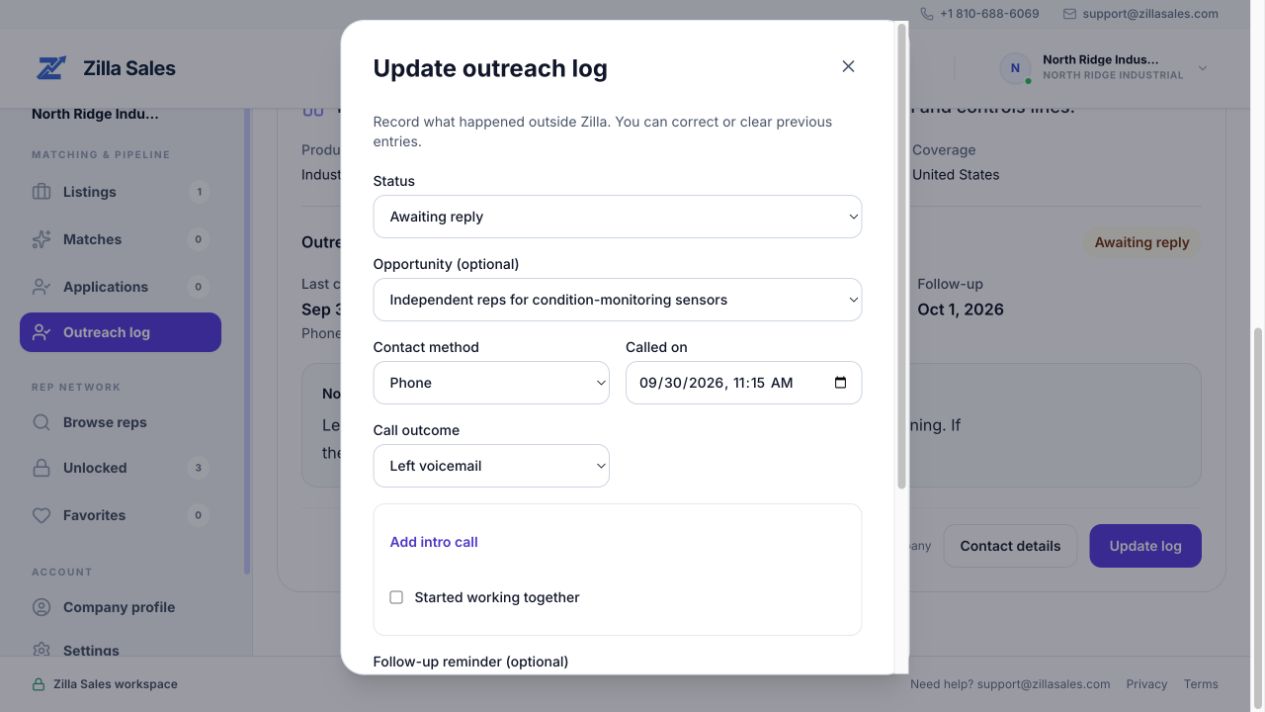
Her note gives her something useful to act on:
Left a short voicemail introducing our monitoring line. Try him again Friday morning. If the timing works, ask which distributors he currently covers.
Leaving a voicemail is a contact attempt. Record Conversation started once there is a useful reply or conversation to report.
Record a reply, intro call, or working relationship
Jordan Alvarez replied to Maya’s email asking for a spec sheet and pricing. She recorded Conversation started → Email → Interested, with the sent and reply dates.
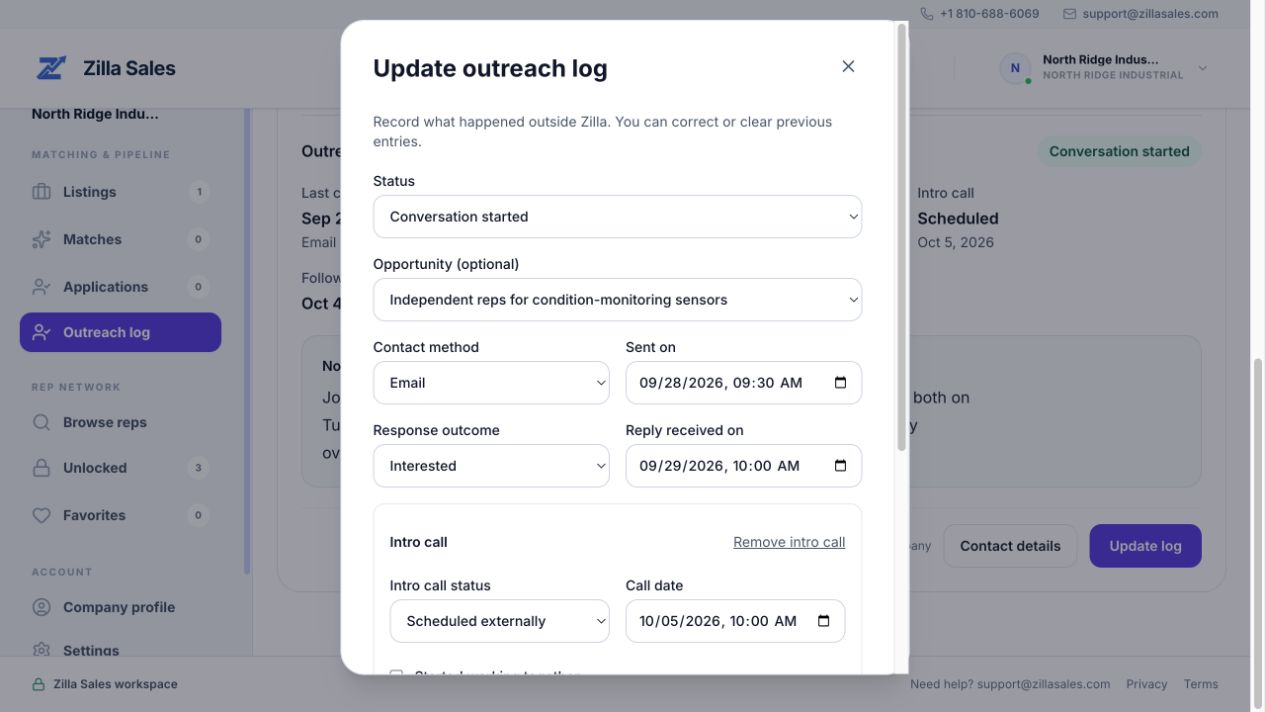
- Select Add intro call when you have a call to record. Choose Scheduled externally, Completed, or No-show, then add the Call date. Arrange the meeting with the rep through your normal calendar or communication tools.
- Check Started working together only when that has happened, and enter the start date. A scheduled call is a separate milestone.
- Keep Notes specific: what the rep asked for, a potential line-card conflict, what you sent, and the next agreed step. Longer notes can be opened with Read full note on the card.
Keep follow-ups useful
Set Follow-up reminder (optional) for the date you want to revisit a rep. When the date arrives, the log shows a due-follow-up banner and filter. This is a reminder in the log; it does not send an email or a message to the rep.
After following up, update the last contact, outcome, note, and next reminder as appropriate. If the rep declines or the timing is wrong, record the reason and choose Closed when you no longer plan to follow up.
Correct an entry or check contact access
Use Update log to correct an outcome or date. Remove intro call clears the recorded call, and unchecking Started working together clears its date when you save. Clear recorded outcomes resets the entry to No update recorded after you select Save log update; it does not remove the rep from the log or send them a message.
Cards identify whether the latest update was reported by your company or Zilla staff. These are recorded outcomes, not automatically verified activity.
Previously unlocked contacts remain accessible after paid access ends. Applicant-only contact details require current paid access unless your company also unlocked that rep. Your outreach record remains available even when Contact details locked is shown.
Related guides
Was this article helpful?
Tell us whether this answered your question.