
Account
Sign in and troubleshoot login problems
Follow the correct sign-in path, then use targeted checks for email-code, Google, role, and redirect problems.
Zilla Sales supports email-code sign-in and Google sign-in. Use the same email identity you used during registration, claiming, or company onboarding so you return to the correct account.
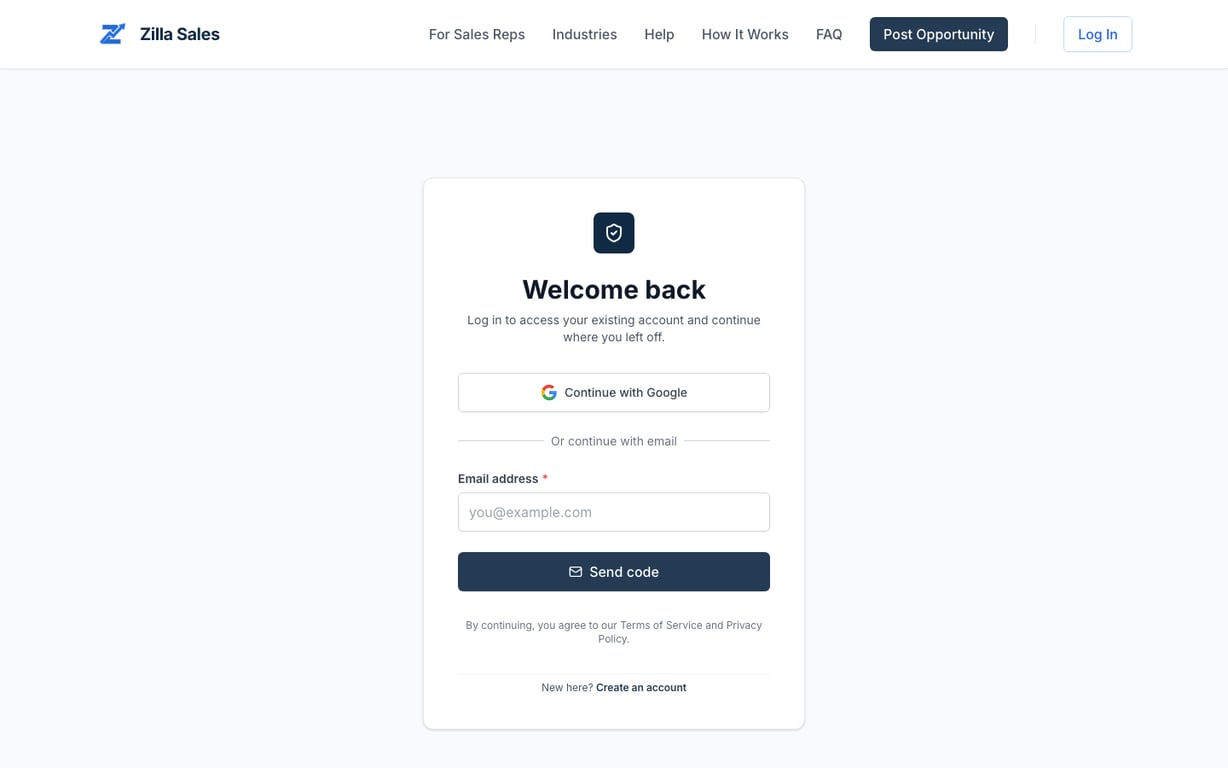
Standard sign-in flow
- Open sign in.
- Enter your email and complete the email-code flow, or continue with Google.
- If this is your first sign-in, choose Company or Rep when asked.
- Continue to the company or rep workspace.
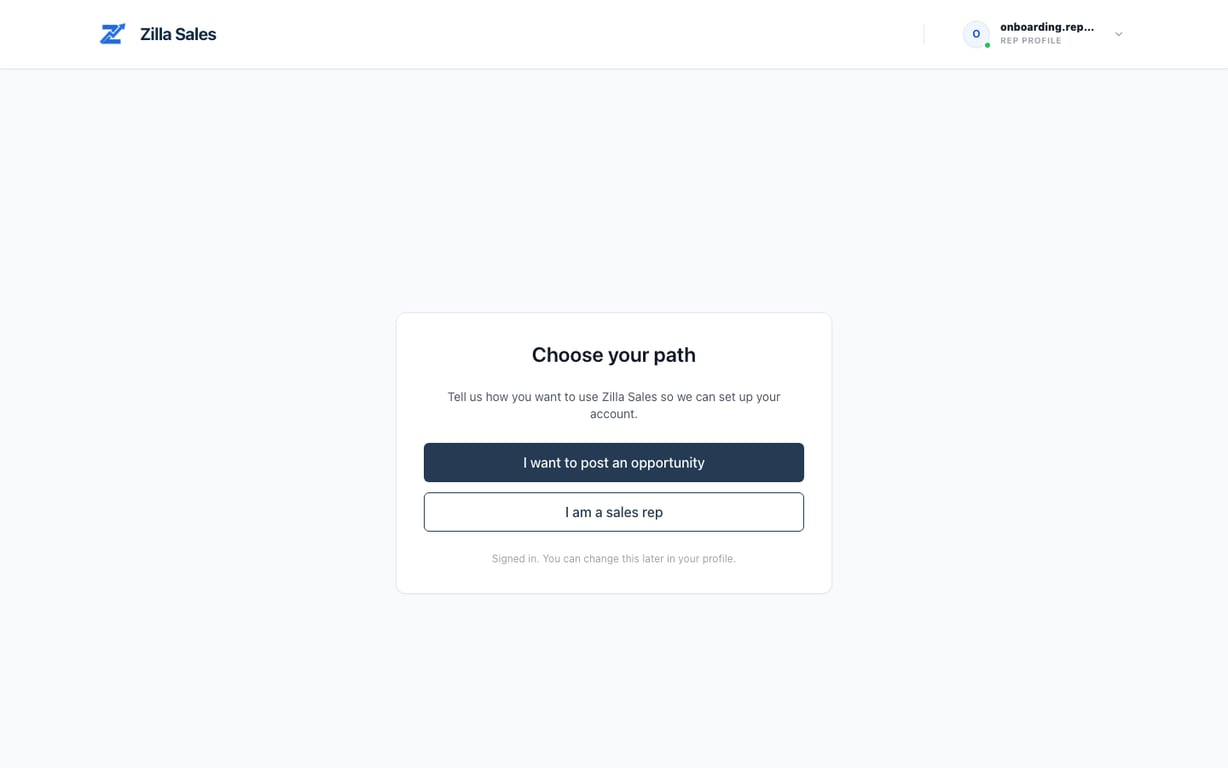
Company users are routed to listings, applications, matches, and rep tools. Rep users are routed to opportunities, profile, line card, favorites, and applied listings. Opening a route for the wrong account type can send you back to the correct area.
If the email code does not arrive
- Confirm the address is spelled correctly
- Check spam, promotions, quarantine, and company mail filtering
- Wait for the newest message before requesting another code
- Use only the newest valid code
- Ask your mail administrator whether automated authentication messages are blocked
Never share a sign-in code with support or another person.
If Google opens the wrong account
Sign out, then select the intended Google identity explicitly. If Google appears to create a different or empty account, stop and return to the email associated with your existing Zilla Sales profile.
Changing your account email is a separate verified process. Follow Change your account email instead of creating another login.
If you land on the wrong page
Complete the account-type choice if it is still pending. Then verify whether the account should be a company or rep account. A company onboarding flow can temporarily preserve the opportunity you started before sign-in; after authentication, you should return to that flow.
If redirects repeat:
- Copy the page you intended to open.
- Sign out.
- Retry in a private or incognito window.
- Disable extensions that block cookies, pop-ups, or authentication requests.
- Sign in with the original account email.
- Open the intended page again.
If your account was claimed or scheduled for deletion
A rep whose pre-created profile was claimed should sign in with the claiming email and then review the claimed profile.
If the account is inside its 30-day deletion recovery period, signing in with the same email sends you to the recovery screen. Follow Delete or recover your account.
When to contact support
Contact support@zillasales.com after the checks above. Include the account email, whether you used email-code or Google, the page you expected, the page you reached, approximate time, browser, and exact error text. Do not send the authentication code itself.
Related guides
Was this article helpful?
Tell us whether this answered your question.